![Logo-White-1.png]](https://docs.yogobooking.com/hs-fs/hubfs/Logo-White-1.png?height=40&name=Logo-White-1.png)
Updating your card (as a customer):
- Log in to your profile via the app or the studio's website.
- Go to "My Profile" → "Show Membership"
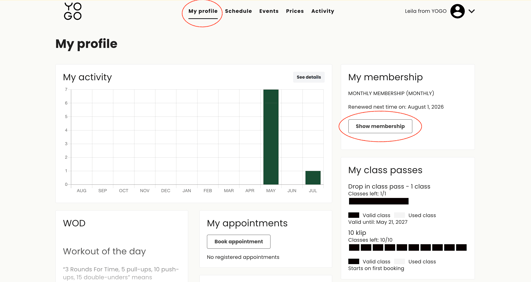
- Select "Update payment card" and enter your new card details.
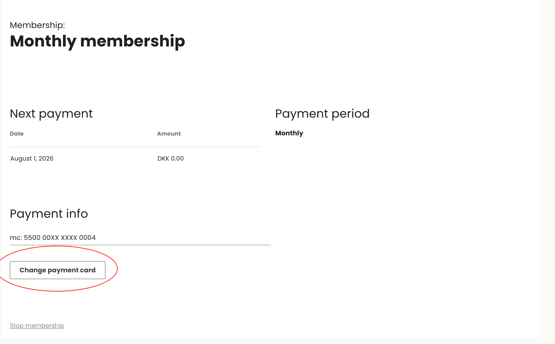
- Confirm the change — the new card will be used for your next payment.
Note: If you are asked to confirm via MitID or another 3D Secure verification, remember to click "Continue" after confirming — otherwise the card change won't go through.
If the update fails:
- Try updating the card from a computer/browser instead of the app — some mobile browsers/app versions can run into issues with 3D Secure verification.
- Make sure the card has international/online payments enabled with your bank.
- If the member has an outstanding, overdue invoice, some payment providers block saving a new card until the old balance is settled. Ask the member to pay the outstanding invoice first (via the app, MobilePay, or bank transfer), then register the payment manually in admin.
- Check in admin whether the customer mistakenly has multiple active memberships/cards linked — this can prevent a correct update.