![Logo-White-1.png]](https://docs.yogobooking.com/hs-fs/hubfs/Logo-White-1.png?height=40&name=Logo-White-1.png)
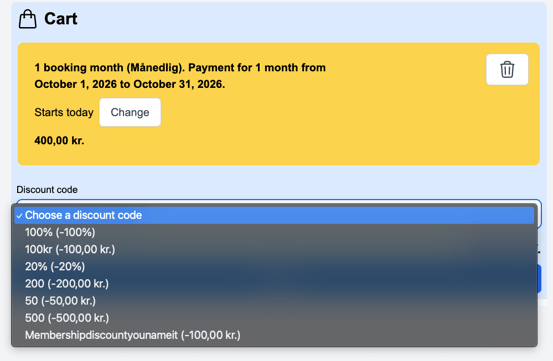
When a customer is at the front desk, you can now add a discount code to their purchase in just a few clicks. YOGO only shows the discount codes that match the items in the cart and that the selected customer is still allowed to use. The discount stays on the order whether the customer pays by payment link or on the card terminal.
Which discount codes are shown?
The list only shows discount codes that can be used on the current purchase. This means that:
- the code must apply to at least one of the items in the cart
- the code must be active
- the customer must not have used the code the maximum number of times allowed
For example, if a code can only be used once per customer, it disappears from the list as soon as that customer has used it. The same goes for codes that have reached their maximum number of customers.
👉 Tip: If you can't find a specific code in the list, check the setup of the discount code under "Discount Codes". You can read more in the article Step-by-step: How to create a discount code.
1. Give your staff access
Before a staff member can apply discounts in POS, access must be turned on for their role.
Go to "Users" in the menu and select "Roles". Open the role you want to edit and check "Can use discount codes in POS". Click "Save".
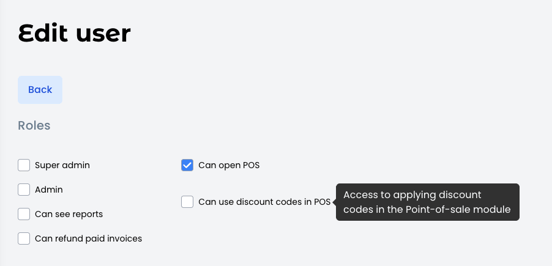
👉 Tip: Super Admins always have access to discount codes in POS, so you don't need to turn it on for them.
2. Add items to the cart and select the customer
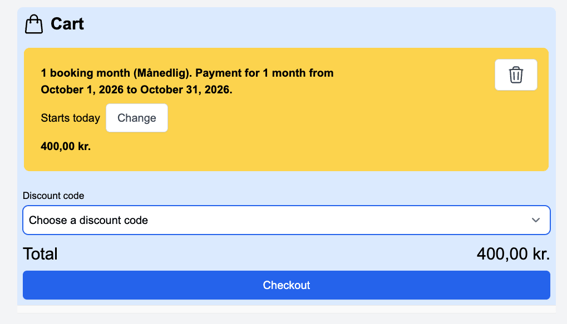
Open POS and add what the customer wants to buy. Then select the customer, so YOGO can check which discount codes they are allowed to use.
3. Choose the discount code
Click "Add discount code" and choose the right code from the list. The discount is applied right away, and you can see the new price in the cart.
4. Complete the payment
Choose whether the customer pays by payment link or on the card terminal. The discount follows the order automatically, whichever payment method you choose.
💡 Why it's useful
- Faster checkout without errors: Staff choose from a list, so there are no typos and no codes that don't fit the purchase.
- Your campaign rules are protected: Limits on uses per customer and in total are handled automatically.
- You decide who can give discounts: Only the roles you give access can use discount codes in POS.
- More sales in the studio: Run in-person campaigns and reward customers on the spot.