![Logo-White-1.png]](https://docs.yogobooking.com/hs-fs/hubfs/Logo-White-1.png?height=40&name=Logo-White-1.png)
This is especially useful for memberships with long billing cycles, where fees can otherwise build up over several months.
How it works
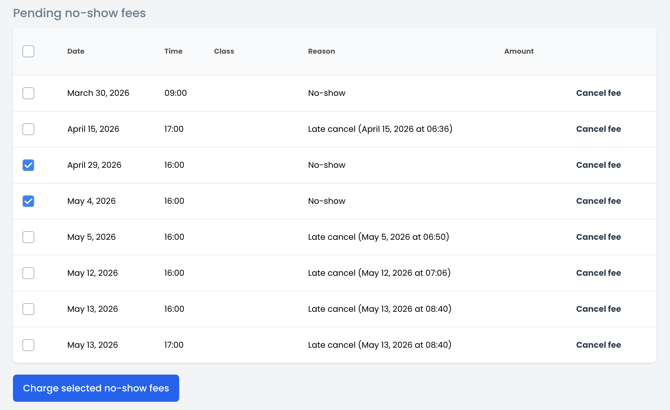
- Go to Admin → customers → search for specific customer
- Click on membership → pending no-show fees
When a customer has unpaid no-show or late cancellation fees, you can now select one or more fees and charge them immediately from the membership. You can charge all fees at once or select them individually.
Reducing accumulated debt
On annual memberships or memberships with long payment cycles, no-show fees can accumulate over time. Charging them continuously is usually in the interest of both the studio and the customer, as it avoids a large accumulated charge at the end of a billing period.
Before you use this feature
Charging fees outside of the regular payment schedule is a change in payment terms. Before using this feature, make sure that:
- Your terms and conditions cover it — Your terms should clearly state that no-show and late cancellation fees can be charged continuously, outside of the regular billing cycle.
- Your members have been informed — If your current terms do not mention this, or if members signed up before this was included, you should notify them before charging fees this way.
- If a member was not informed at the time of purchase that fees could be charged at any time, charging them immediately may be considered a change to the agreed payment terms.
IMPORTANT: YOGO does not validate whether your setup is legally compliant. You are responsible for ensuring that your terms are up to date and that your members have been properly notified. If you are unsure, we recommend updating your terms and informing your members before activating this feature.
Using the feature without the proper setup in place may lead to member disputes, refund requests or complaints.
To see our article on how to set up your “no-show fees” and cancellation deadlines: How to set up your “no-show fees” and cancellation deadlines