![Logo-White-1.png]](https://docs.yogobooking.com/hs-fs/hubfs/Logo-White-1.png?height=40&name=Logo-White-1.png)
When a client tries to sign up for a class without a valid membership or pass, YOGO shows a list of products the client can buy to join. With Purchase Options, you decide what appears on that list. You can create different lists for each class type and highlight a product with a badge, e.g. “Most popular”.
You can find the feature in YOGO Admin under “Prices” > “Purchase Options”.
How to get started
- Create a price group: Purchase Options is based on your price groups, so you need at least one. Go to “Prices” > “Price Groups” and create one if you haven’t already.
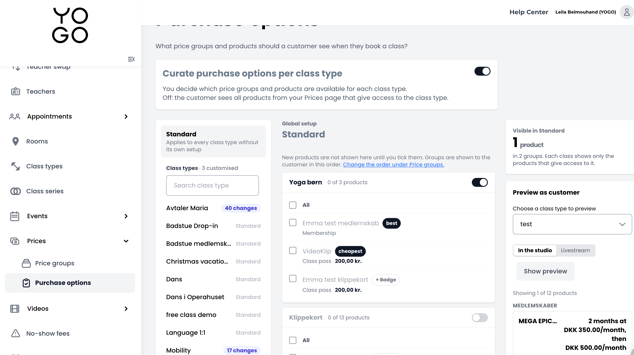
- Choose your products: Go to “Prices” > “Purchase Options” and check the products your clients should be able to buy. Start under Default.
- Turn the feature on: Switch on “Customize purchase options per class type”. Your clients can now see your setup.
[Image: Purchase Options overview with the toggle and Default]
You can take your time setting everything up before you turn the feature on. Until then, your clients will see the regular list.
Default applies to all class types
Default is your basic setup and applies to all your class types. This is where you set up what should apply in most cases.
How to customize a single class type
- Select the class type: Find the class type in the list that should show something different from Standard.
- Click “Customize”: The class type now gets its own setup, which starts as a copy of Standard.
- Adjust the setup: Check or uncheck the products that should be shown for this specific class type.
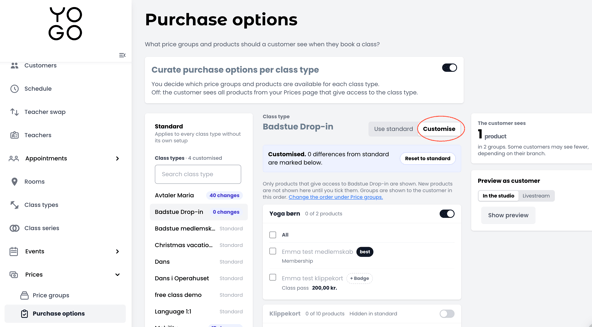
Once you have customized a class type, it is independent. If you make changes to Standard afterwards, the class type will not be updated. This is useful when you have set up a class type exactly the way you want it, because it stays that way.
If you want the class type to follow Standard again, click “Reset to standard”.
Remember to check new products
A product is only shown to clients when it is checked. If you create a new membership or pass, you need to go to Purchase Options and check it before it is offered to your clients.
The same applies if you give an existing product access to a new class type.
This way, you decide when a new product becomes visible to your clients. If nothing is checked under Standard, the page will let you know.
Your choices apply per price group
Your choices belong to the price group the product is in. If the same membership is in two price groups, you can show it in one and hide it in the other. You can also give it two different badges.
Badges
A badge is a short text that highlights a product, e.g. “Most popular” or “Great for beginners”. The text can be up to 40 characters.
The badge belongs to the product in the price group it is in. A product in two price groups can therefore have two different badges.
The order of the list
The sections are shown in the same order as your price groups, and the products are shown in the order they have within the price group. You can change the order under “Prices” > “Price Groups”.
See the list as your clients see it
Click “View as customer” at the top of the page and select a class type. You will then see exactly the list your client will see. This is a good way to check your setup before you turn the feature on.
What happens after the client has made a purchase?
Once the payment goes through, the client is automatically signed up for the class and receives a receipt confirming both the purchase and the sign-up.
If the class has become fully booked in the meantime, the purchase still goes through and the client keeps the product. The client is notified that the sign-up could not be completed and can use the product for another class instead.
💡 Good to know
- Clients only see what fits the class: A product must give access to that specific class type to be shown. A yoga membership will not appear on a Pilates class.
- The product must be in a visible price group: When you use price groups, a product that is not in a visible price group will not be offered.
- More spots mean fewer options: If a client books more than one spot, memberships and time-based passes cannot be used. Only class passes with a fixed number of classes will be shown.
- Clients may see different things: The branch the class belongs to affects what is shown. So do the client’s own passes and memberships.
Who can use Purchase Options?
Purchase Options is included in the Studio plan and above. If you are on a smaller plan, your clients will see the regular list.