![Logo-White-1.png]](https://docs.yogobooking.com/hs-fs/hubfs/Logo-White-1.png?height=40&name=Logo-White-1.png)
How to enable membership pause in Admin
- Go to Admin → settings → memberships
- Under memberships you can find the setting "Pausing memberships"
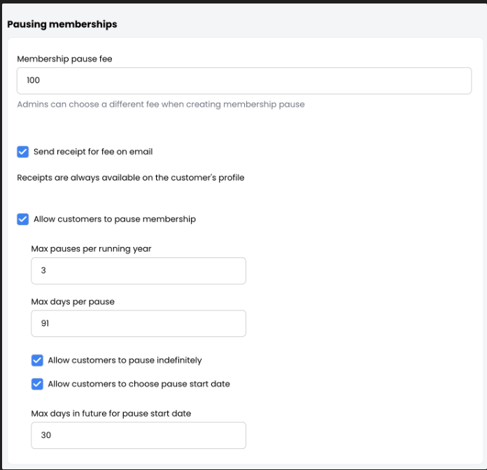
You can now choose the following configurations:
Membership pause fee — Set a fixed fee for pausing. The customer is shown the amount and must confirm before the pause is activated. You can also choose whether a receipt is sent by email.
Allow customers to pause membership — Enables the option on the customer's membership page.
Max pauses per running year — Set how many times a customer can pause within a year.
Max days per pause — Set the maximum length of each pause.
Allow customers to pause indefinitely — If enabled, customers can pause without an end date.
Allow customers to choose pause start date — If enabled, customers can choose when the pause begins. You can also set how many days in advance they can schedule it. If disabled, the pause always starts today.
What the customer sees
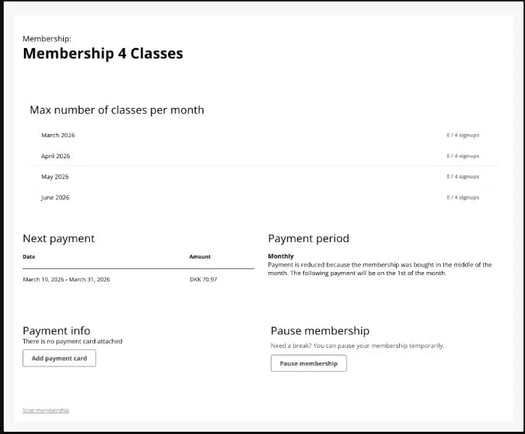
On the customer's membership page, a Pause membership section is visible. From here the customer can start a new pause, see an active pause or cancel it.
When setting up a pause, the customer selects a start date and an end date. If a fee applies, they are informed before confirming.
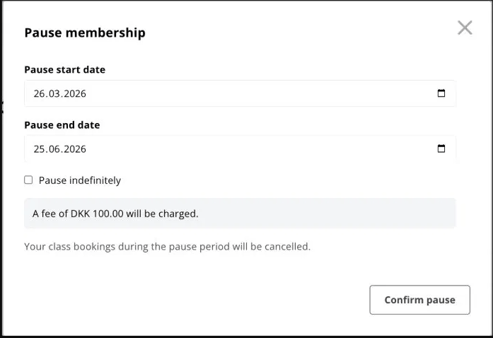
Any existing class bookings during the pause period will be cancelled automatically when the pause is confirmed.
Visibility for the studio
All pause activity is logged on the membership, including when a pause was created and if it was cancelled. Under the customer's history in admin you'll find a Membership pauses section with a full overview of all pauses for that customer.