![Logo-White-1.png]](https://docs.yogobooking.com/hs-fs/hubfs/Logo-White-1.png?height=40&name=Logo-White-1.png)
Was an event cancelled or a purchase reversed? In YOGO, you can refund credit card payments directly from the customer profile – no external tool needed.
How to issue a refund
- Go to "Customers" in YOGO Admin and select the person who should receive the refund.
- Open the "Customer history" and expand the "Purchases" drop-down.
- Click on the relevant purchase.
- The "Refund" button will appear on the right – click it to create the credit note. ✅

The customer will automatically receive a copy of the credit note by email.
Where can I find my refunds?
You can view your refunds in two places in YOGO:
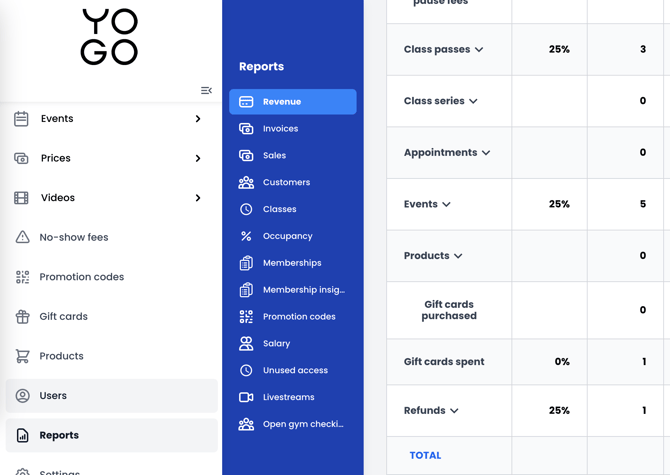
- Reports → Revenue (at the bottom of the page)
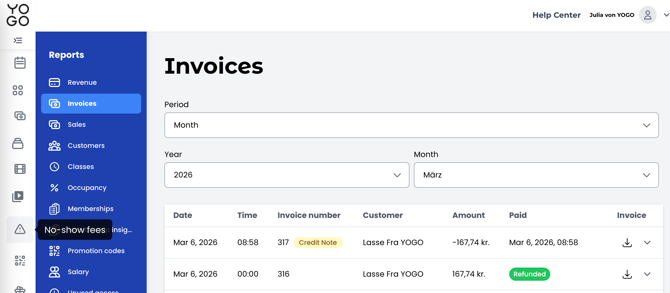
- Invoice overview
Who can issue refunds?
Refunds can be carried out by Super Admins as well as Admins. In the Studio and Studio + App plans, the Super Admin can control this permission individually for each Admin. Learn more in the article What is the difference between Admin and Super Admin?.
"Why can't I refund a purchase?"
If you're unable to complete a refund, it's usually due to one of the following:
- The payment is too old. Most payment providers only allow refunds within a certain window (typically 6–12 months) after the original transaction. Check exact limit per provider-
- The amount has already been partially refunded. The system won't allow refunding more than the original purchase amount.
- You don't have the right permissions. Only Admin/Super Admin roles can issue refunds.
If the error persists, take a screenshot of the error message and contact YOGO support so we can check the payment directly in the payment provider's system.
Important: Refunds are currently only possible for payments made by credit card. Other payment methods cannot yet be refunded directly in YOGO.